How Affiliate Marketing Works
The complete journey — from applying, to setting up your profile, to sharing your code and getting paid. Jump to any section below, or scroll through all the steps.
Apply & Get Started
Discover the programme
Browse Zazen Health Solutions' products and learn about the brand on the programme home page. When you're ready, scroll to the application form to get started.
Create your account
Sign up with your email to create your account — this is your login for everything that follows.
you@example.com
Password
••••••••
Fill in the application form
Tell us a little about yourself — why you'd be a great fit, any relevant experience, and where you'll be promoting.
Why do you want to join?
Share your motivation…
Experience (optional)
e.g. wellness coaching
Social media (optional)
@yourhandle
Sign your affiliate agreement
Right after applying, you'll reach the agreement step. Download the agreement, sign it, and post your signed copy back to us. This is the formal partnership agreement covering commissions and promotional guidelines.
Post your signed copy to:
Zazen Health Solutions
(the mailing address is shown on the agreement page)
You can also upload your signed copy when that option is available. Either way, mailing it won't delay your review — you can continue to your dashboard right away.
Application pending
The Zazen Health Solutions team reviews your application. While you wait, you'll see a pending badge on the programme page — and you'll get an email the moment a decision is made.
Application PendingYou're approved! 🎉
Once approved, you'll receive a welcome email. It contains your personal affiliate code and a link back to this guide — keep it handy, it's the code you'll share with everyone.
Congratulations! You're now a representative
Your application has been approved!
Your affiliate code
AB12CD
Sign In & Set Up Your Profile
Sign in after approval
Head back and sign in with the email and password you created.
you@example.com
Password
••••••••
Your fresh affiliate dashboard
Your personal affiliate network is created automatically on approval. The first time in, it'll look a little empty — let's fix that by setting up your profile.
Open Manage Network → Settings
From your network, open Manage and go to the settings tab. Your dashboard tabs look like this:
Add your profile details & photo
Fill in your community profile — your name, a short bio, and a profile picture so your audience knows who they're buying from.
Display name
Short bio…
Add your banking details
Scroll down and add your bank details — this is how you'll receive your commission payouts, so don't skip it.
Bank name
SWIFT / BIC
IBAN / Account
Save with Update Profile
Scroll to the bottom and press Update Profile to save everything.
Update ProfileYour updated dashboard
Your dashboard now shows your completed profile. You're ready to start promoting.
Your Network, Products & Code
View My Network
Open your Dashboard and click View My Network to see your live affiliate page — now updated with your profile. This is your home base; from the top bar you can reach Content Hub, Resources, and your Dashboard.

Your products & your exclusive code
Scroll down to see the products you're eligible to promote — and the most important thing of all: your exclusive affiliate code. It's the one code you share whenever you get someone to sign up or buy.
Your dashboard will look like this
Your Network Name
Your real code replaces AB12CD once you're approved.
Give it to anyone you're signing up or encouraging to buy — they save 5%.
It's exactly how we track each sale back to you for commission — every order with your code shows up under Orders.
When you share posts or product links from the platform, your code is built in automatically.
Create & Share Content
Browse the Content Hub
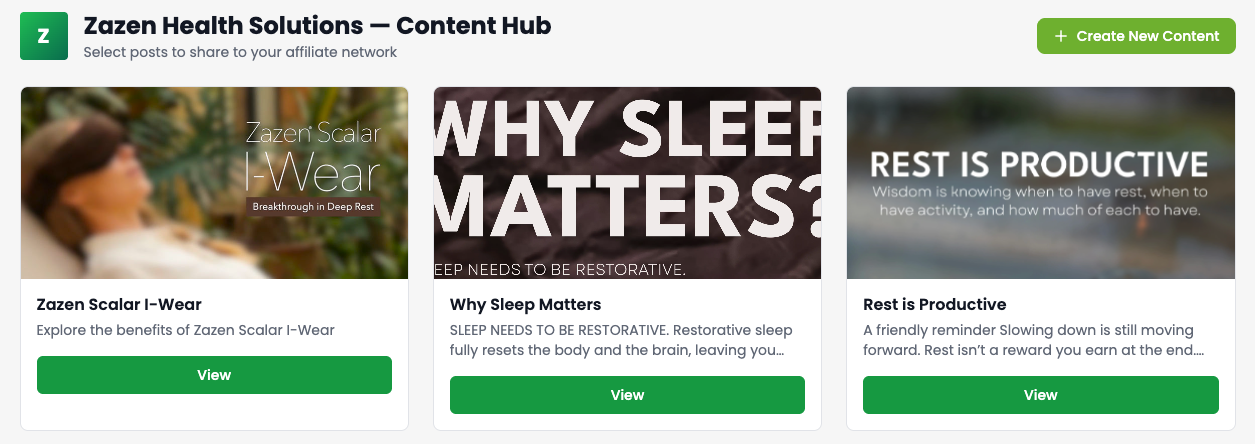
Click Content Hub in the top navigation. Zazen Health Solutions publishes ready-made posts — with images and copy — that you can share directly to your network. You'll see a grid of available items:
Open & view a post
Click any item to open its detail page. Scroll down to preview the full content and see which products it features.
Edit it (or share as-is)
Add your own touch to the title and body, choose which products to link, then share — or, if it's already perfect, share it straight away.
Title (editable)
Sample Post Title
Body (editable)
Ready-made copy you can tweak before sharing…
Link products
Share to your network → your post page
After you share, you're taken straight to your live post page. Share this link with friends, family, or anyone you want to promote to — when they buy from it, your code is already applied and the sale is credited to you.
See it in your feed
Your shared post also appears in your network feed and under the posts tab of your dashboard — so you can always find it again and re-share it.
Or create your own post from scratch
Prefer your own words? Tap the + create button and build a post yourself — add images, video, or text, then link the products you want to feature.
Share to external platforms
From any post page, use the share button to spread your content far and wide. Your affiliate code is embedded automatically in every shared link.
Marketing Resources
Grab marketing resources
Open Resources from the top navigation. Zazen Health Solutions keeps a shared library of brand assets — logos, product photos, guidelines, and downloadable files. Use them however you like to promote, just remember to include your affiliate code.
Track Your Dashboard
Orders — who ordered with your code
From your dashboard, the orders tab shows everyone who has ordered using your code, in real time.
Payouts — payments made to you
The payouts tab keeps track of all the commission payments made to you. (Don't forget to fill in your bank details so we can pay you!)
Posts — everything you've shared
The posts tab is where you'll find all the posts you've shared or created, ready to revisit and re-share any time.
Host & Share Events
Create an event
Want to go beyond posts? From your dashboard's events tab you can create your own events — webinars, meet-ups, or product talks — to bring your audience together.
Fill in the events form
Give your event a name, date, and location (or link), add a description, and publish.
Event name
Wellness Workshop
Date & time
Pick a date
Location / link
Online or venue
View your events list
Your published events appear in a list on your network page and dashboard.
Wellness Workshop
Upcoming · Online
Open an event & share it
Open any event to view its page, then share it with anyone you'd like to invite — the same way you share your posts.